> ## Documentation Index
> Fetch the complete documentation index at: https://docs.chatnode.ai/docs/llms.txt
> Use this file to discover all available pages before exploring further.
# Client Action
## Overview
A **Custom Client Action** allows your AI Agent to execute workflows directly in the client (e.g., browser). This is particularly useful for **client-side data handling** or **UI updates**.
Note: Custom client actions will **not work** in Slack or the in-app chat window.
**Example Use Case:** Detect the user's current location and show nearby restaurants, or auto-fill a form with profile data stored in the browser.
## How to Create a Custom Client Action
### Step 1: Create a Custom Client Action
1. Go to the **Actions** tab.
2. Click **List** from the left-hand menu.
3. Select **Create Action**.
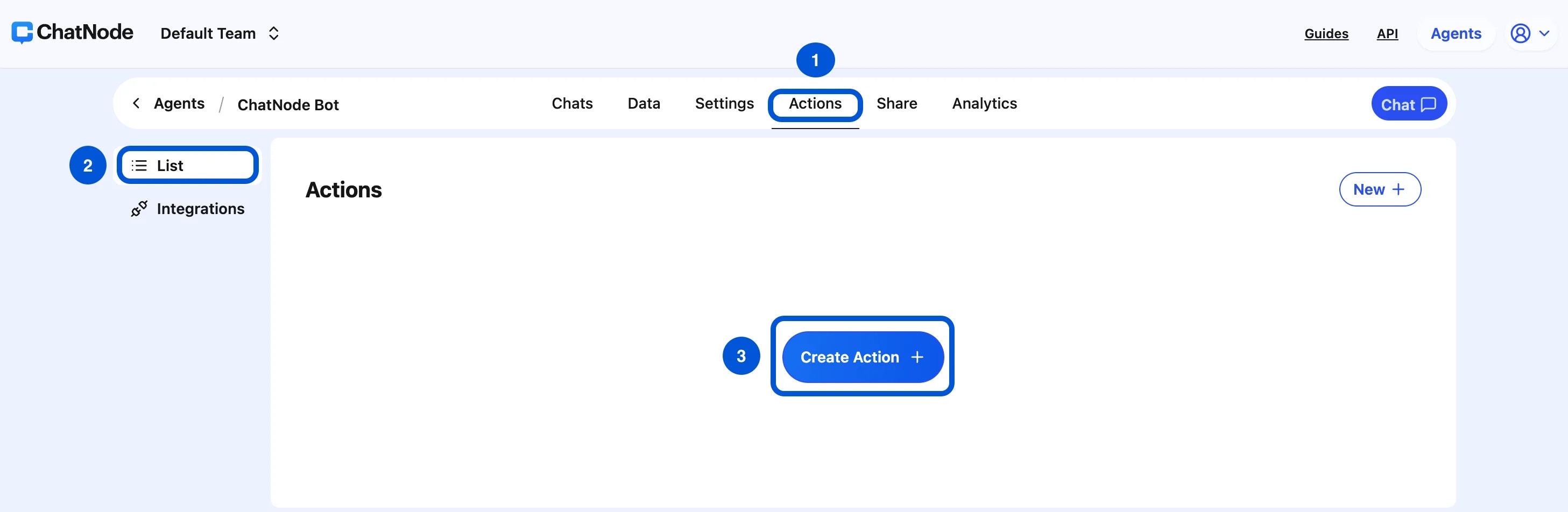 4. Choose **Client Action** under **Custom Action**.
5. Enter an **Action Title** in the pop-up window and click **Create**.
4. Choose **Client Action** under **Custom Action**.
5. Enter an **Action Title** in the pop-up window and click **Create**.
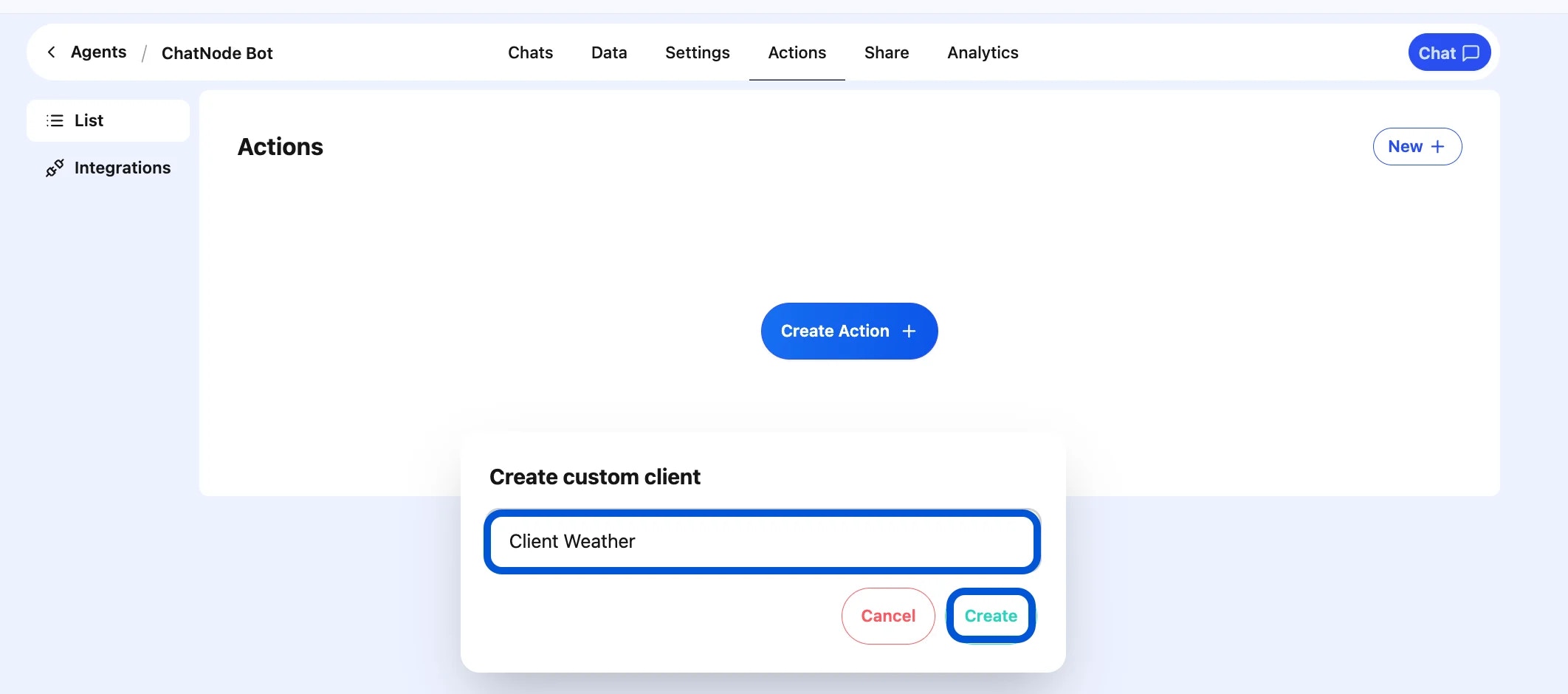 6. You'll now see the action setup screen, where you can configure the details.
**Example:** Create a client action called **`getLocation`** to detect the user's browser location.
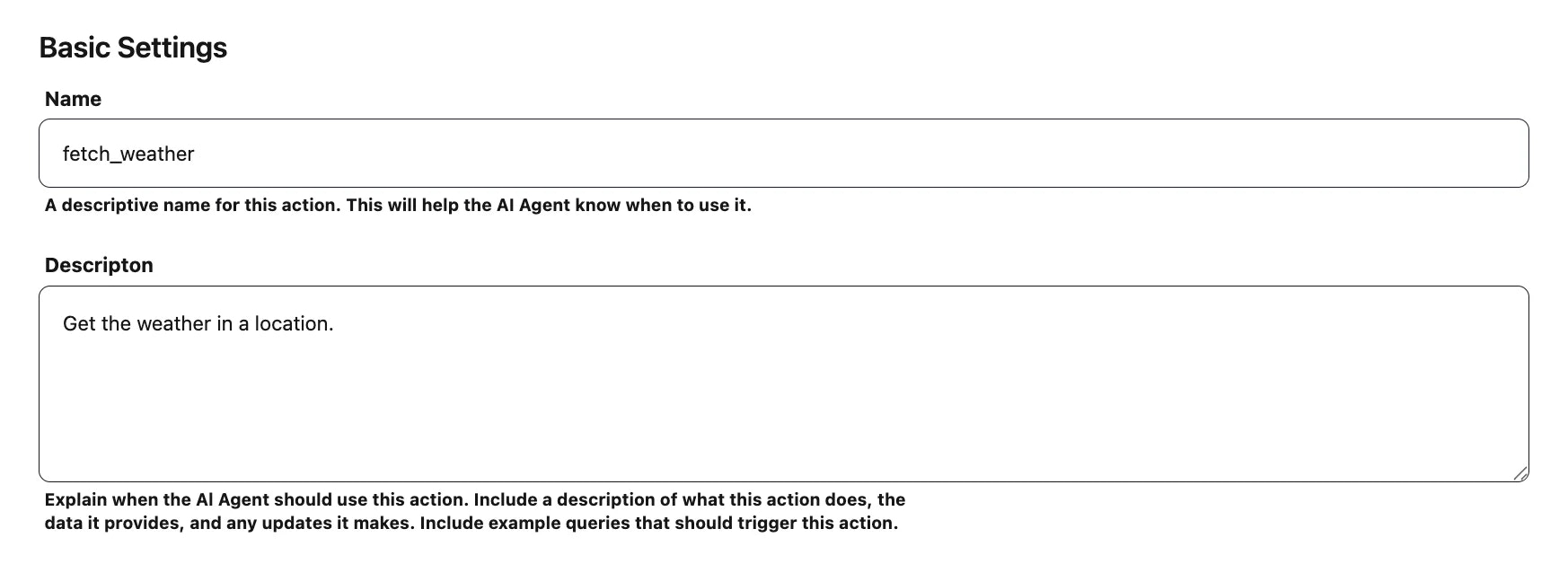
### Step 2: Basic Settings
1. **Name** - Enter a descriptive name.
* Example: `getLocation`
2. **Description** - Explain what the action does and when it should be used.
* Example: **Detects the user's current location using the browser and returns the coordinates for nearby content.**
This helps the AI Agent know when to trigger the action.
6. You'll now see the action setup screen, where you can configure the details.
**Example:** Create a client action called **`getLocation`** to detect the user's browser location.
### Step 2: Basic Settings
1. **Name** - Enter a descriptive name.
* Example: `getLocation`
2. **Description** - Explain what the action does and when it should be used.
* Example: **Detects the user's current location using the browser and returns the coordinates for nearby content.**
This helps the AI Agent know when to trigger the action.
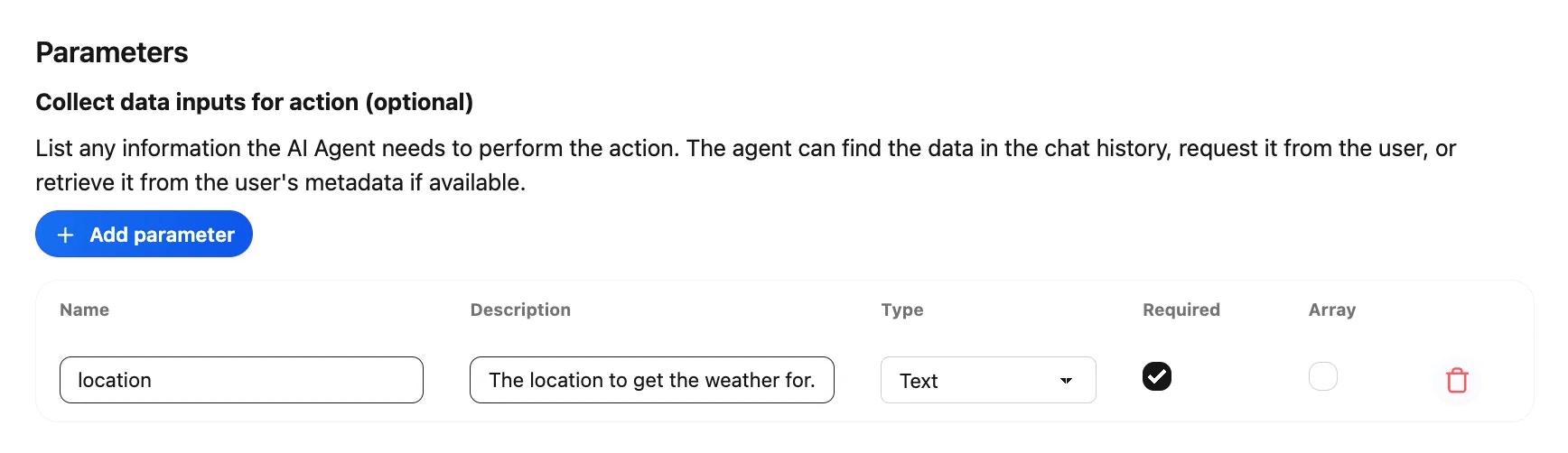
 ### Step 3: Add Parameters (Optional)
Parameters allow you to collect input data that the client action may need.
* Click **Add Parameter**.
* Fill in the fields:
* **Name:** `radius`
* **Description:** Distance in kilometers around the user's location to search for restaurants.
* **Type:** Number
* **Required:** ✔️
### Step 3: Add Parameters (Optional)
Parameters allow you to collect input data that the client action may need.
* Click **Add Parameter**.
* Fill in the fields:
* **Name:** `radius`
* **Description:** Distance in kilometers around the user's location to search for restaurants.
* **Type:** Number
* **Required:** ✔️
 ### Step 4: Enable the Action
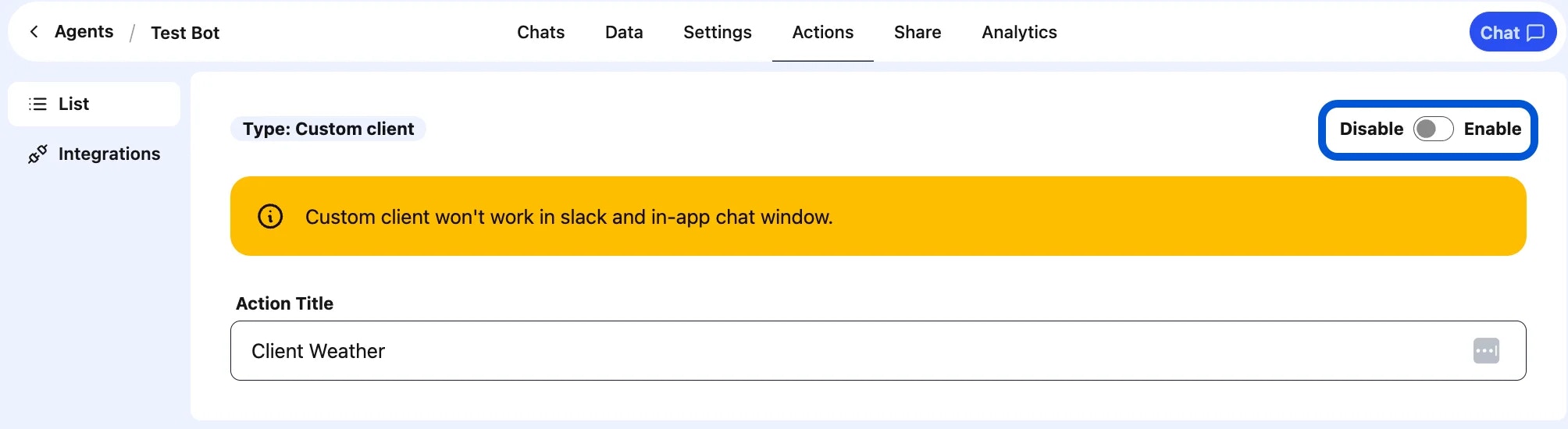
At the top of the screen, toggle the switch from **Disable → Enable** to activate the action.
You can disable it later if needed.
### Step 4: Enable the Action
At the top of the screen, toggle the switch from **Disable → Enable** to activate the action.
You can disable it later if needed.
 ### Step 5: Register Tools in Your Client
Finally, register your Client Action in your website or app using the `registerTools` method.
See the [Developer Guide: `registerTools()`](/developer-guides/javascript-sdk/client-actions#registertools) for details and examples.
## Example Workflow
1. User asks: **“Find coffee shops within 2 km of me.”**
2. AI Agent triggers the **`getLocation`** Client Action.
3. The action detects the user's location using the browser.
4. The agent calls a restaurant API with the location and radius.
5. Response: **“Here are 3 restaurants within 2 km of your current location.”**
With this setup, your AI Agent becomes **interactive and context-aware**, providing results tailored to the user's environment.
### Step 5: Register Tools in Your Client
Finally, register your Client Action in your website or app using the `registerTools` method.
See the [Developer Guide: `registerTools()`](/developer-guides/javascript-sdk/client-actions#registertools) for details and examples.
## Example Workflow
1. User asks: **“Find coffee shops within 2 km of me.”**
2. AI Agent triggers the **`getLocation`** Client Action.
3. The action detects the user's location using the browser.
4. The agent calls a restaurant API with the location and radius.
5. Response: **“Here are 3 restaurants within 2 km of your current location.”**
With this setup, your AI Agent becomes **interactive and context-aware**, providing results tailored to the user's environment.