> ## Documentation Index
> Fetch the complete documentation index at: https://docs.chatnode.ai/docs/llms.txt
> Use this file to discover all available pages before exploring further.
# Get Subscriptions
## Overview
The **Get Subscriptions** action allows your AI Agent to retrieve and display customer subscriptions directly from your connected Stripe account. This is useful for quickly checking **active, canceled, or past subscriptions** without needing to log into Stripe manually.
**Example:** A user asks: **“Can you show me my active subscriptions?”**
The AI Agent fetches subscription details from Stripe and provides them in chat.
## How to Create a Get Subscriptions
### Step 1: Create a Stripe Get Subscriptions Action
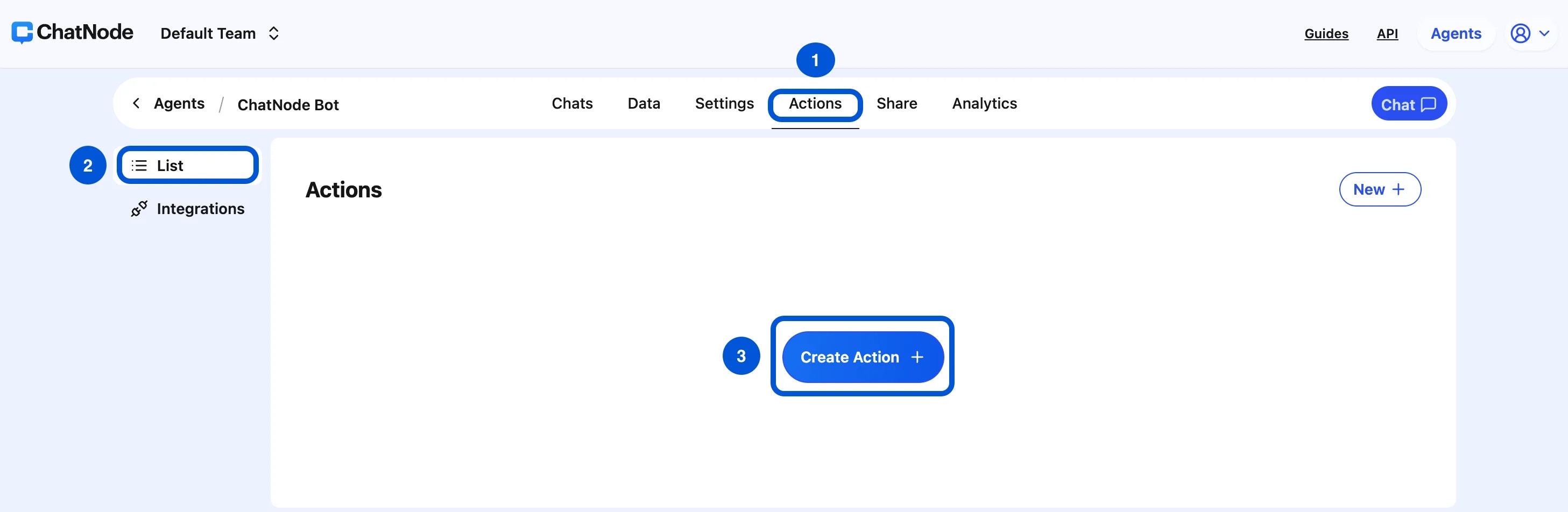
1. Go to the **Actions** tab.
2. Click **List** from the left-hand menu.
3. Select **Create Action**.
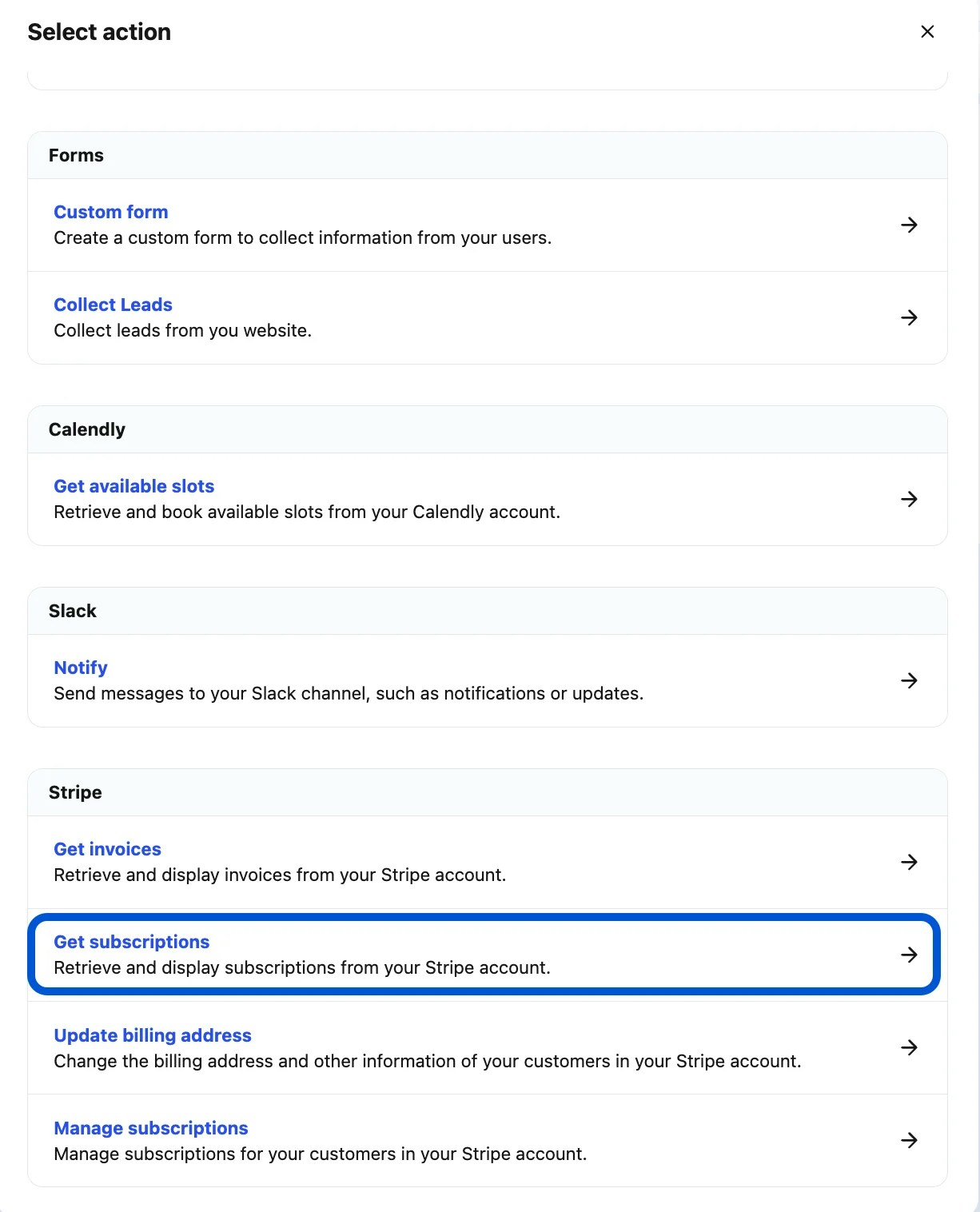
 4. Under **Stripe**, choose **Get Subscriptions**.
 5. Enter an **Action Title** in the pop-up window (e.g., Get Subscriptions) and click **Create**.
6. You'll now see the configuration screen for subscription retrieval.
### Step 2: Basic Settings
* **Name** → Give your action a descriptive name.
* Example: retrieveSubscriptions
* **Description** → Explain when and how the action should be triggered.
* Example:
Retrieve and display customer subscriptions from the connected Stripe account. Useful for showing active or past subscriptions.
This ensures the AI Agent knows what to fetch and when to use the action.
5. Enter an **Action Title** in the pop-up window (e.g., Get Subscriptions) and click **Create**.
6. You'll now see the configuration screen for subscription retrieval.
### Step 2: Basic Settings
* **Name** → Give your action a descriptive name.
* Example: retrieveSubscriptions
* **Description** → Explain when and how the action should be triggered.
* Example:
Retrieve and display customer subscriptions from the connected Stripe account. Useful for showing active or past subscriptions.
This ensures the AI Agent knows what to fetch and when to use the action.
 ### Step 3: Subscription Retrieval
When triggered, this action retrieves subscription details such as:
* Subscription **status** (active, past\_due, canceled, unpaid, trialing).
It's filter subscription based on status, just like invoices.
* **active**: Subscription is currently running.
* **canceled**: Subscription has been canceled.
* **incomplete**: Created but not successfully paid.
* **incomplete\_expired**: Incomplete and expired without payment.
* **past\_due**: Payment is overdue.
* **paused**: Subscription is temporarily paused.
* **trialing**: Subscription is in a trial period.
* **unpaid**: Marked as unpaid due to failed payments.
* Linked **customer information**.
* Billing cycle and renewal details.
Example Queries:
* **“Show me my current subscription.”**
* **“Do I have any past subscriptions?”**
* **“When does my subscription renew?”**
### Step 4: Enable the Action
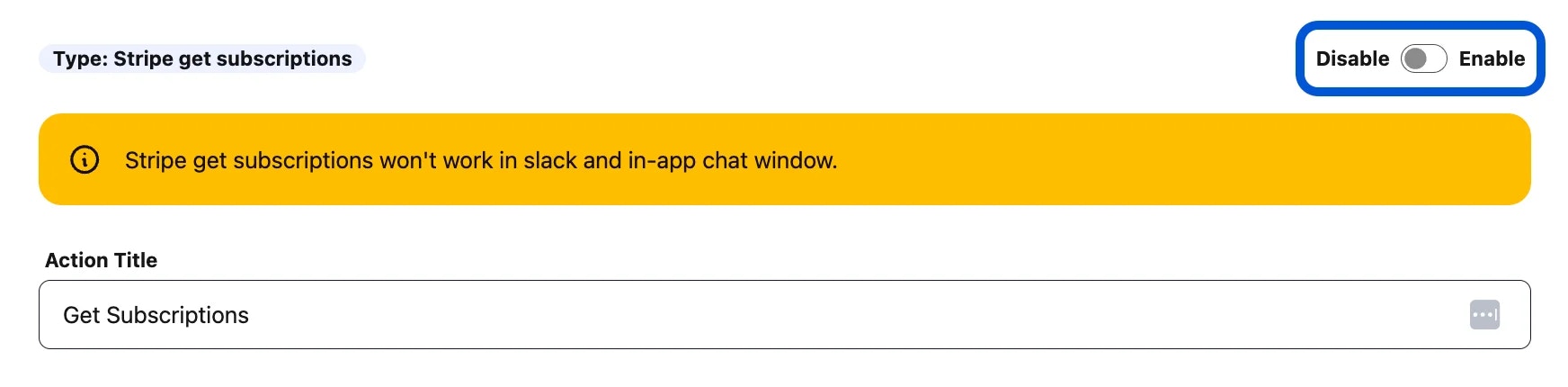
At the top of the configuration page, toggle from **Disable → Enable** to activate the action.
Note: The Get Subscriptions action will not work in Slack or in-app chat windows.
### Step 3: Subscription Retrieval
When triggered, this action retrieves subscription details such as:
* Subscription **status** (active, past\_due, canceled, unpaid, trialing).
It's filter subscription based on status, just like invoices.
* **active**: Subscription is currently running.
* **canceled**: Subscription has been canceled.
* **incomplete**: Created but not successfully paid.
* **incomplete\_expired**: Incomplete and expired without payment.
* **past\_due**: Payment is overdue.
* **paused**: Subscription is temporarily paused.
* **trialing**: Subscription is in a trial period.
* **unpaid**: Marked as unpaid due to failed payments.
* Linked **customer information**.
* Billing cycle and renewal details.
Example Queries:
* **“Show me my current subscription.”**
* **“Do I have any past subscriptions?”**
* **“When does my subscription renew?”**
### Step 4: Enable the Action
At the top of the configuration page, toggle from **Disable → Enable** to activate the action.
Note: The Get Subscriptions action will not work in Slack or in-app chat windows.
 ## Example Workflow
1. User: **“Can you show me my active subscriptions?”**
2. AI Agent triggers **Stripe Get Subscriptions**.
3. Stripe returns a list of the user's active subscriptions.
4. AI Agent responds:
**“You currently have an active subscription: Plan: Premium, Status: Active, Renewal Date: March 15, 2025.”**
With the **Stripe Get Subscriptions** action, your AI Agent can seamlessly provide subscription details to customers, improving support efficiency and reducing manual lookups.
## Example Workflow
1. User: **“Can you show me my active subscriptions?”**
2. AI Agent triggers **Stripe Get Subscriptions**.
3. Stripe returns a list of the user's active subscriptions.
4. AI Agent responds:
**“You currently have an active subscription: Plan: Premium, Status: Active, Renewal Date: March 15, 2025.”**
With the **Stripe Get Subscriptions** action, your AI Agent can seamlessly provide subscription details to customers, improving support efficiency and reducing manual lookups.